Import Your Conversations Into Pyxa
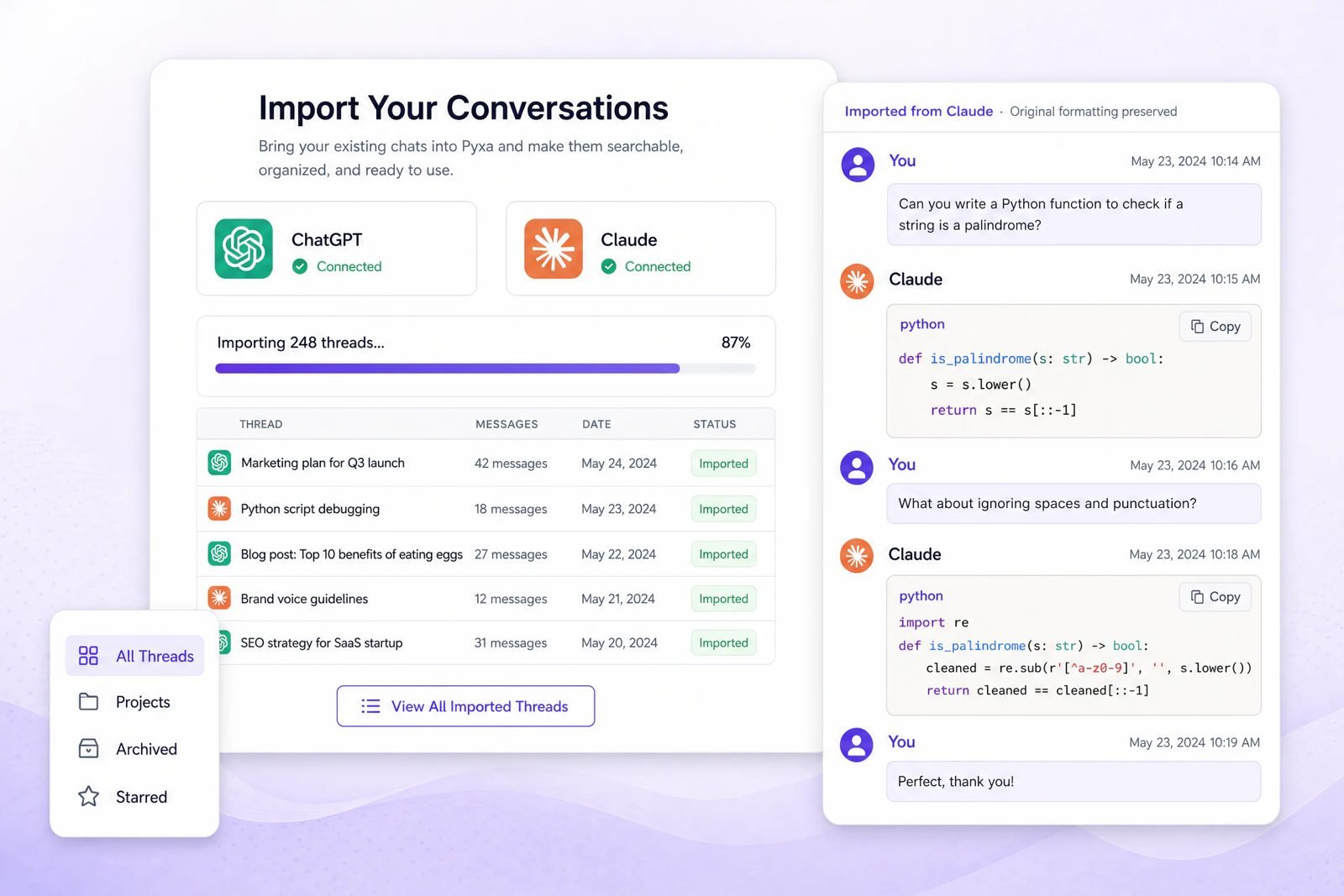
Export from ChatGPT or Claude, upload the file, and your full history appears in Pyxa. Open any old chat and keep going, nothing starts from zero.
 ChatGPT → Pyxa
 Claude → Pyxa
Your Imported Chats, Continued With Every Leading Model
ChatGPTImport your ChatGPT history
ClaudeImport your Claude history
Your Best Work Is Trapped Inside ChatGPT and Claude
Months of thinking, drafts, code, and research sit inside subscriptions you keep paying for. The day you stop paying, or simply want a better tool, that history stays behind.
Locked In History
Your threads live inside one app. Leave the app and the history does not follow you.
Hard To Find Anything
Old chats sink in a long sidebar list. Finding one answer from three months ago takes scrolling, not searching.
Starting From Zero
Every switch means re-explaining your context, your style, and your project from the first message again.
Rent You Pay Forever
Many people keep a subscription alive for one reason only: they cannot afford to lose their own chat history.
Bring Your Old Chats With You
PyxA imports the conversation file you export from ChatGPT or Claude and rebuilds your history inside one dashboard, searchable and ready to continue with every model in one place.
Three Steps, and Your Old Chats Are Home
No scripts, no copy pasting thread by thread. One export file does the whole move.
Export Your File
Download your conversation file from ChatGPT or Claude settings. It takes under a minute, the steps are inside the FAQ below.
Upload To Pyxa
Drop the file into Pyxa. Your threads import with the original formatting preserved, code blocks included.
Search & Continue
Every old chat becomes searchable. Open any thread and pick up right where you left off, with any model.
What Comes With Your Chats
Your history arrives the way you left it, not as a stripped text dump.
- Full threads and messages, in the original order, from the first prompt to the last answer.
- Code blocks and formatting, preserved, so a working script stays a working script. Pair it with the AI Code Generator and keep building on it.
- Dates and organization, so old work stays findable by when it happened.
- Starred and archived chats, kept organized the way you had them.
Why Import Into Pyxa
Importing is not just storage. It turns your old chats into a working asset inside a full AI platform.
Searchable History
Search across every imported thread at once and jump straight to the answer you remember writing.
Continue Any Old Chat
Imported chats are not read only. Open one and continue it, the context is already there.
Every Model, One Dashboard
Continue the same chat with a different model. See the full list on our AI models page.
History That Survives Switching
Once your chats are in Pyxa, no single subscription controls access to your own work again.
Organized Threads
Projects, archived, and starred chats keep their place, the same way our AI File Chat keeps your documents organized.
One Lifetime Payment
Stop renting access to your own history month after month. One payment, and the dashboard is yours.
Why Choose Import Conversations by Pyxa
Overall rating 4.9, based on what the move actually gives you versus leaving your history where it is.
Switching Takes Minutes
The path is the same from both platforms: export, upload, continue.
Moving From ChatGPT To Pyxa
- Open ChatGPT settings and request a data export.
- Download the file from the email ChatGPT sends you.
- Upload it in Pyxa and watch your threads appear.
Moving From Claude To Pyxa
- Open Claude settings and export your conversations.
- Save the export file to your device.
- Upload it in Pyxa and continue any chat inside AI Web Chat.
Built for People Who Live in AI Chat
Marketers
Campaign ideas, briefs, and copy threads from the last year, searchable in seconds.
Developers
Debugging sessions and code explanations you already solved once, ready to reuse.
Researchers & Students
Months of study chats and sources, organized instead of buried in a sidebar.
Agencies & Teams
Client context that lives in chat history moves with you, not with one account.
One Payment vs. Never-Ending Subscriptions
What changes the day your history moves to Pyxa.
| Staying Put | Switching To Pyxa | |
|---|---|---|
| Your chat history | Locked inside one app | Portable, it moves with you |
| Payment | Monthly rent, forever | One lifetime payment |
| Models | One model per subscription | Every leading model, one dashboard |
| Finding old chats | Scroll and hope | Full search across all threads |
| Total cost | Monthly fees, every month | $49.99 LIFETIME One payment only |
Why People Trust Us
★★★★★
Rated on Trustpilot
I moved two years of ChatGPT threads into Pyxa in one evening. Being able to search them all is worth it alone.
Placeholder review · replace with a real Trustpilot review before publish
Cancelled my extra subscription the same week. My Claude chats came with me, nothing was lost.
Placeholder review · replace with a real Trustpilot review before publish
Continuing an old client chat with a different model, in the same thread, is something I did not know I needed.
Placeholder review · replace with a real Trustpilot review before publish
Our Other Top-of-the-Line Tools
AI Code Generator
Generate, fix, and explain code, including the code inside your imported chats.
Frequently Asked Questions
How do I export my conversations from ChatGPT?
Open ChatGPT, go to Settings, then Data Controls, and choose Export Data. ChatGPT emails you a download link. Download the file, then upload it in Pyxa under Import Your Conversations.
How do I export my conversations from Claude?
Open Claude, go to Settings, then Privacy, and use the export option to download your conversation data. Save the file, then upload it in Pyxa the same way.
What file format does Pyxa accept for imports?
Pyxa accepts the standard export file that ChatGPT and Claude give you. You do not need to convert, unzip and edit, or reformat anything by hand.
Does formatting stay intact, including code blocks?
Yes. Threads import with their original formatting preserved, including code blocks, lists, and headings, so a working answer stays a working answer.
Can I search my imported chats inside Pyxa?
Yes. Once imported, your full history is searchable. Type a keyword and jump straight to the thread and the message you need.
Can I continue an imported chat, or is it read only?
You can continue it. Open any imported thread and keep chatting with full context, with any model available in Pyxa.
Is my imported conversation data private?
Yes. Your imported chats belong to your account and are not shared with other users. See our privacy policy for how account data is handled.
Do I need a paid Pyxa plan to import my chats?
Importing is part of the Pyxa platform. Grab the lifetime deal and your imports, history, and every tool sit under one payment, with no monthly rent.
Do Not Start From Zero
This offer is for a limited time. Bring your ChatGPT and Claude history with you, and own the dashboard it lives in.
Get Lifetime Access For $49.997-day money-back guarantee · One payment · No monthly rent